
Field Notes

Practical breakdowns of Airtable, Notion and Coda, and the exact moment a spreadsheet stops being enough.

No ticket to IT required

The spreadsheet finally met its match. Here's what came after.

AIFlow Systems is a working notebook on Airtable, Notion, Coda and the small internal tools ordinary teams build on a quiet Tuesday afternoon, without filing a request and waiting three sprints for someone else to get to it.

No affiliate links, ever Written for non-technical readers
Overhead view of a desk with a laptop displaying a colourful project tracker board next to a notebook and a cup of coffee
Setup time Roughly 30 minutes, start to first working view

Every guide on this site was rebuilt from a blank workspace, timed with a kitchen clock, and written down honestly, including the parts that were fiddly.

Spreadsheets Airtable Notion Coda
Three tools, three different jobs

What each of these actually does well

Click a card to open it. None of these tools are interchangeable, and pretending otherwise is how most internal tool projects go sideways in week two.

A spreadsheet is brilliant for a list. The moment two people need to update it at once, or one row needs to reference another table entirely, the cracks show up. There is no real concept of a "record" that lives in more than one view. Formulas break silently when someone inserts a column in the wrong place. Nobody quite knows which tab is the current one.

Spreadsheets aren't the villain here. They just were never built to be a shared operational system, and asking one to behave like a database is asking a bicycle to tow a trailer.

Airtable keeps the familiar grid but adds linked records, so a "Project" row can genuinely connect to five "Task" rows without copy-pasting anything. Switch the same data into a calendar, a kanban board or a gallery view, and everyone sees the version that suits how they work.

Where it earns its keep is automations: a status change can trigger a notification, a form submission can create a record automatically, and permissions can be set at a level a spreadsheet has no concept of. It is not a full application platform, but for structured internal data, it closes most of the gap.

Notion's strength is context. A database entry for "Client Onboarding" can sit right next to the actual onboarding checklist, the meeting notes and the shared wiki page, all in one workspace instead of scattered across five apps.

It handles lighter structured data well, tasks, simple CRMs, content calendars, but its relational features are less rigorous than Airtable's. Teams who need Notion mostly need a shared source of truth that reads like a document, not a spreadsheet with extra steps.

Coda treats a document as programmable material. Tables inside a doc can reference each other with formulas that resemble spreadsheet syntax, buttons can trigger multi-step actions, and Packs connect to outside services without writing code.

This makes Coda the most flexible of the three, and also the one with the steepest short learning curve. Teams comfortable experimenting with formulas tend to get the most out of it. Teams who just want a clean list often find Airtable or Notion faster to stand up.

Close-up of a laptop screen showing multiple spreadsheet tabs with conflicting version names like final, final2 and really-final
What spreadsheets cannot do

Four things a grid was never built for

Someone always says "we already have a spreadsheet for that." Fair. Here's what tends to happen next, and what a lightweight database actually solves.

  • Real relationships between records. A task can belong to a project, which belongs to a client, and updating one place updates every view of it.
  • Permission that isn't all-or-nothing. Some tools let you restrict who can see or edit specific rows, not just the whole file.
  • Automations that fire on their own. A status change can send a message or create a follow-up task without a human remembering to do it.
  • A front door that isn't the file itself. A form can collect input from people who never touch the underlying table at all.
The thirty-minute build

How a basic project tracker actually comes together

This is the order teams tend to work in when they build their first tracker, regardless of which tool they land on.

01

Decide what a "task" needs

Before opening any tool, list the handful of fields a task record actually requires: name, owner, status, due date. Resist adding twelve fields on day one.

02

Pick views before the tool

A list for data entry, a board for status, maybe a calendar for deadlines. Knowing the views you need shapes which tool makes sense.

03

Wire up two or three automations

A status change notifying the owner, or a new form entry creating a task. Keep the automation count low so it's still fixable by a non-developer later.

04

Share it and watch what happens

The first version is a draft. Watch how people actually enter data for a week, then adjust fields and views based on real behaviour, not guesses.

Why people keep coming back to this site

Four reasons this stays useful, not promotional

No affiliate links, anywhere

We don't earn a commission if you sign up for anything mentioned here. That changes what gets written, and what doesn't need to be.

Rebuilt, not just described

Every workflow on this site was actually built inside the tool, timed, and screenshotted along the way, not summarised from a marketing page.

Written for non-technical readers

No assumed background in databases or code. Terms like "relational" or "API" get explained the first time they show up.

Honest about where it stops

Some problems genuinely need a developer. We say so plainly instead of stretching a no-code tool past what it can reasonably do.

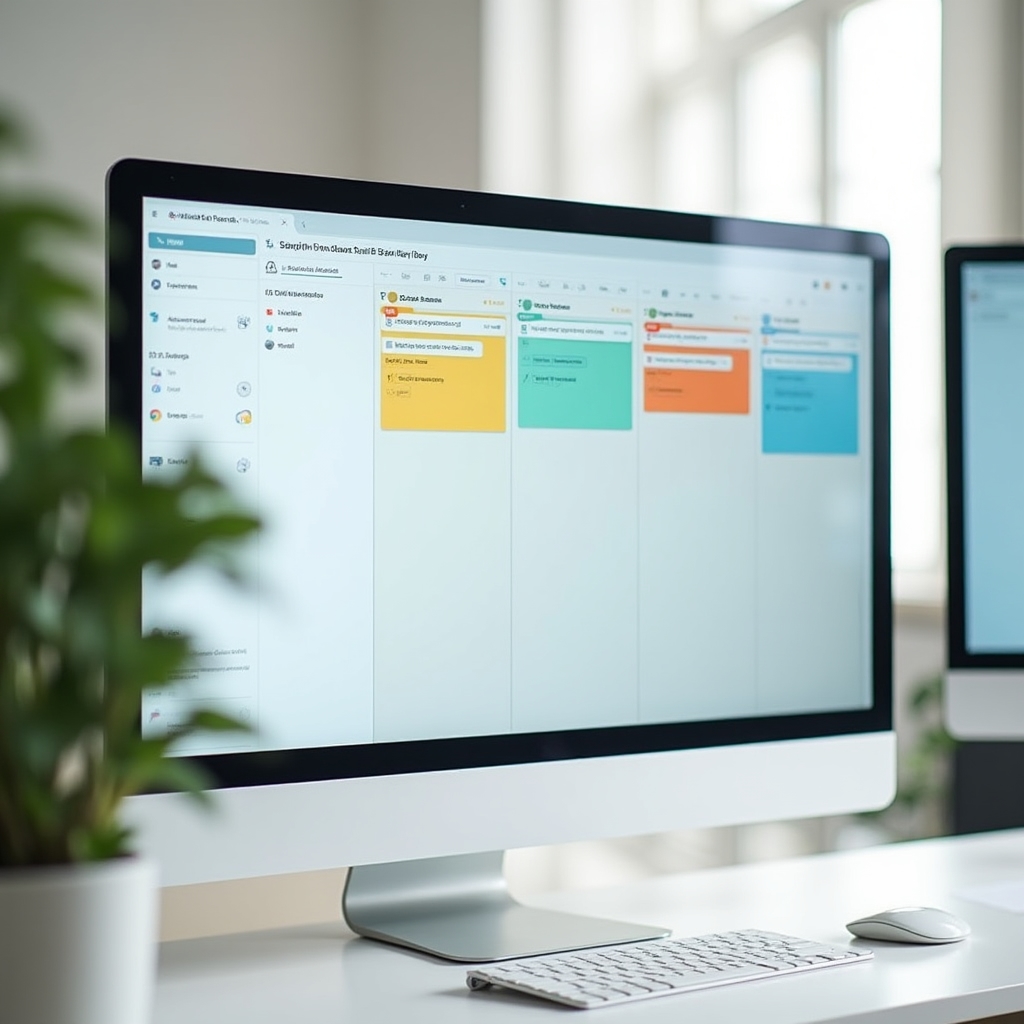
Wide shot of a monitor displaying a kanban-style project tracker board with coloured status columns and task cards
Real-world examples

Built things that a marketing coordinator, an office manager and a small ops team actually kept using

An approvals tracker for a five-person finance team. A lightweight CRM for a two-person sales desk. An onboarding checklist that finally replaced a shared PDF nobody updated. None of these needed a developer, and all of them took less than an afternoon.

Browse the examples
Two colleagues in business casual clothing reviewing a technical diagram on a tablet during a handoff conversation in an office lounge
Knowing when to stop

No-code is not the end of the story for every problem

At some point, a workspace outgrows what it was designed for. Thousands of records causing lag, a permission structure too tangled to maintain, or an integration that needs to talk to five other systems reliably. These are the signals that it's time to bring in a developer, and there's no shame in reaching that point.

Read the warning signs

Have a specific setup you're stuck on?

Send a short note. We read every message, though we can't promise a personalised recommendation for your exact stack.

Go to the contact page