Field Notes

Practical breakdowns of Airtable, Notion and Coda, and the exact moment a spreadsheet stops being enough.

Real-world examples

Four things people actually built, and where the line gets drawn

This page collects the walkthroughs people ask about most: the tracker, the comparisons, the common patterns, and the moment it's genuinely time to stop and call in a developer.

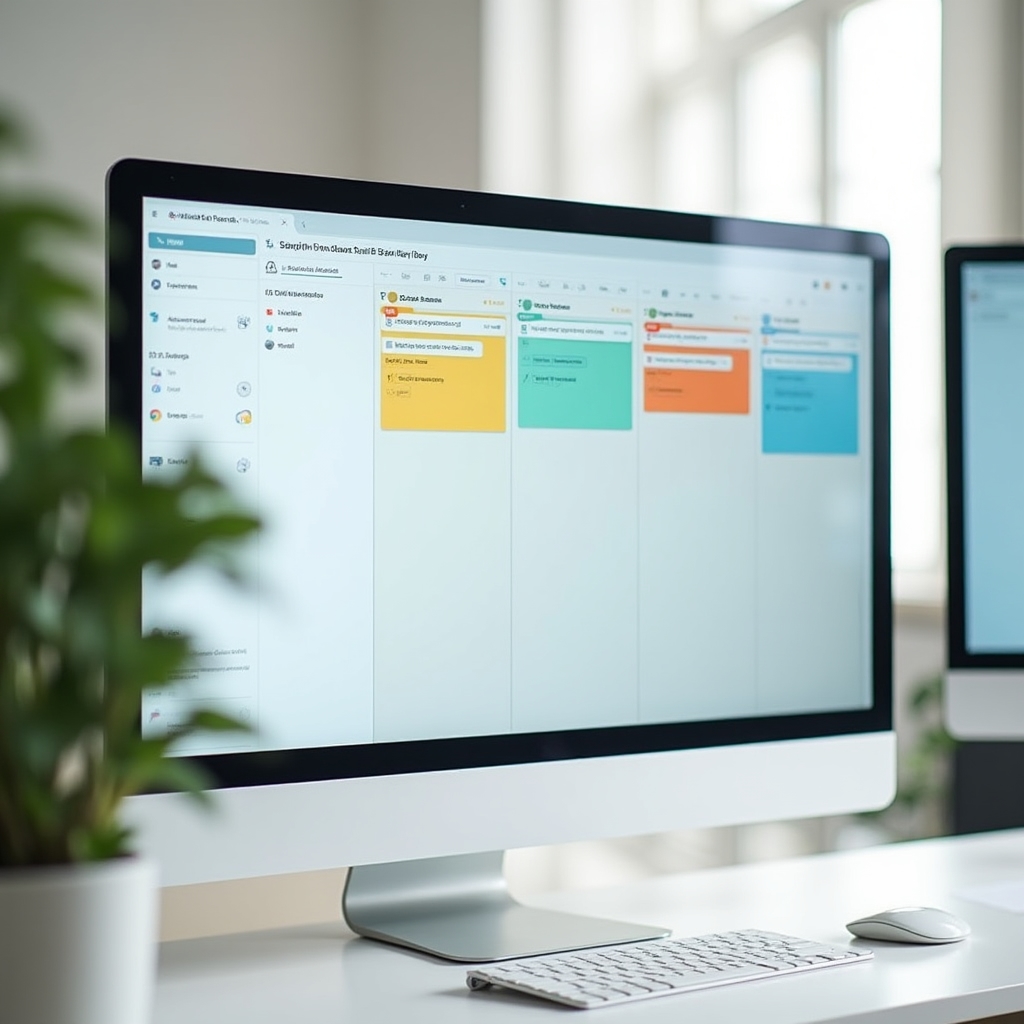
Wide shot of a monitor displaying a kanban-style project tracker board with coloured status columns and task cards
The thirty-minute build

Building a basic project tracker, step by step

Imagine you're managing four small projects with a handful of tasks each, and your current system is a shared document that three people have stopped updating. Here's the exact sequence that gets you a working tracker before your coffee goes cold.

1

Create two tables, not one

Resist the urge to cram everything into a single table. Build a "Projects" table and a "Tasks" table, then link tasks to their parent project. This single decision is what a spreadsheet structurally cannot offer without painful workarounds.

2

Keep task fields to six or fewer

Name, project link, owner, status, due date, and an optional priority. Status should be a single-select field with three to five clear options: Not Started, In Progress, Blocked, Done.

3

Build three views from the same data

A grid view for entering tasks quickly, a board view grouped by status for a daily glance, and a calendar view for anything with a due date. Nobody has to duplicate a single row to get all three.

4

Add one automation, maybe two

A message to the task owner when status changes to Blocked is usually the highest-value automation for a small tracker. A second, optional one can notify a project lead when every task under a project reaches Done.

5

Share the board view first, not the grid

Board views are easier for a first-time user to understand than a raw grid. Share that as the default landing view, and let people discover the grid once they're comfortable.

The tools differ mainly in how this feels to set up. Airtable makes the two-table link explicit and visual. Notion lets you build the same relation through a linked database property, with a slightly more document-like feel. Coda gets you there through a formula referencing the projects table, which takes a bit longer to learn but offers more room to customise later.

Honest comparisons, no affiliate links

Airtable, Notion, Coda and the plain spreadsheet, side by side

These are observations from rebuilding the same small tracker in each tool, not a scored leaderboard. Different teams will genuinely prefer different ones.

Airtable

Strongest for structured, relational data with multiple views.

Setting up linked tables felt the most intuitive of the three. The learning curve for basic use is short, though advanced automations and scripting extensions take longer to master. The free tier caps records per base, which becomes noticeable once a tracker grows past a few hundred entries.

Notion

Strongest when the tool needs to double as a wiki or knowledge base.

Building the same tracker took slightly longer because relation properties require a couple more clicks to configure well. Where Notion pulled ahead was keeping the tracker next to actual project documentation, which teams doing lighter project work tend to appreciate more than raw database rigour.

Coda

Strongest for teams willing to learn formulas for long-term flexibility.

The initial build took noticeably longer, mostly due to formula syntax being unfamiliar at first. Once set up, though, Coda's buttons and cross-doc references made it easy to add small custom actions that neither Airtable nor Notion handled as directly.

Plain spreadsheet

Fine for a single person, fragile the moment others join in.

Fastest to start, by far. But there was no clean way to link tasks to projects without manual copy-paste, no board view without a separate add-on, and version conflicts appeared within the first week of two people editing it.

Common build patterns

Beyond the tracker: what else non-technical teams tend to build

Once people get comfortable with linked tables and a couple of automations, the same pattern gets reused across departments. A few recurring examples:

  • Approval queues. A request table with a status field and an automation that pings the approver, replacing an email chain that nobody could search later.
  • Lightweight CRMs. A contacts table linked to a deals or interactions table, enough structure for a two or three-person sales effort without a full CRM subscription.
  • Simple inventory lists. Stock levels linked to categories and suppliers, with a low-stock view instead of a manual weekly count.
  • Onboarding checklists. A new-hire record linked to a standard set of tasks, so nothing gets missed on someone's first week.
Two office colleagues reviewing an onboarding checklist together on a laptop screen in a bright meeting room
When no-code hits its limits

The signs it's time to actually hire a developer

No-code tools are genuinely capable, but they are not infinite. These are the situations where continuing to patch a workspace usually costs more time than starting a proper build.

Performance drops with scale

Once a base holds tens of thousands of records with several linked tables, views can start loading noticeably slower. That's a structural ceiling, not a settings problem.

Permission logic gets tangled

If different departments need genuinely different views of the same data with strict access rules, most no-code permission systems start to strain under the complexity.

Integrations need to be reliable at volume

Connecting to a handful of external systems occasionally is fine. Needing guaranteed uptime and error handling across many integrations usually calls for custom code.

Compliance requirements are strict

Certain data handling or security requirements are easier to guarantee in a custom-built system where every layer is under your control.

None of this means the no-code phase was wasted. It usually means the workspace did its job long enough to prove the internal tool was worth building properly.